

Sometimes your PC crashes, maybe you bought a new PC, or perhaps you did a mistake and need to revert back to the old settings.
There are multiple ways of how to backup the configuration in DAS Trader Pro.
Use the native backup feature
Go to Tools > Back Up Settings
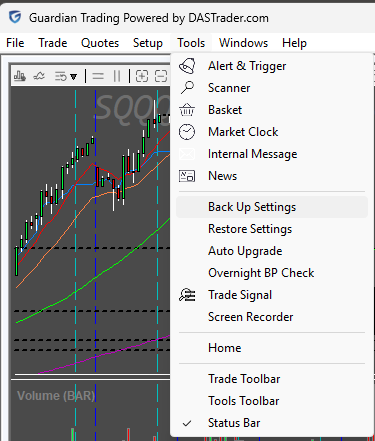
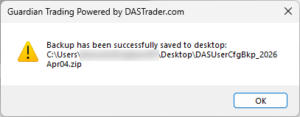
Then, to restore, go to Tools > Restore Settings
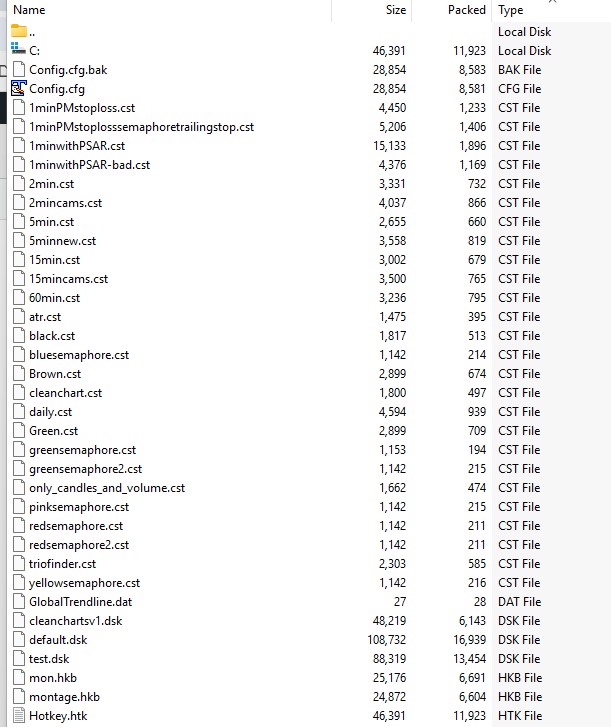
The backup contains
- all the chart config files .cst
- the config.cfg file, which is the DAS Trader Pro program config
- the hotkey.htk, which is storing the hotkeys (only those saved in the hotkeys function)
- the .dsk files, which store the desktop settings (these contain hot buttons, window configurations, chart update scripts, etc.)
This feature is quite limited. Its limits are
- it creates the backup on the current user's desktop.
- it does not allow you to make more backups the same day because its automatic naming is by the current date
- when restoring, it always tries to restore the oldest backup, not the newest
So if you have more backups (which you should have), it requires some preparations or moving of the files from your desktop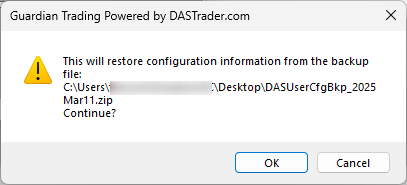
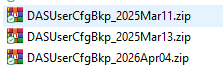
- it is known to have incompatibilities between versions, so always do it on the same versions of DAS Trader Pro
It is better than nothing, and you can use it as you please, but it is not optimal.
Use manual backup
From the previous, it is clear that we can do the same manually and improve it.
Rather than selecting all the .dsk .cfg .cst and .htk files, the whole DAS Trader Pro installation folder being less than 100 MB, it is just more practical to create a copy of the whole folder.
You can have as many folders as your disk space allows. You are welcome to rename them as you like.
To restore, you can then pick to restore a specific file by copying it from the backup folder, overwriting the default file in your DAS Trader Pro install directory, or the whole folder, or just run the DAS from one of the backup copies instead. The backup can be automated by scripting and using the Windows Task Scheduler to create a backup every day and rotate the backups, etc., but still a better solution exists.
Use cloud sync
If you have Dropbox, OneDrive, Google Drive, or any other modern cloud drive solution and good internet connectivity, you can ley the DAS Trader Pro install folder sync to your cloud.
The same can be achieved by having a local server share on a home storage NAS with versioning support. There is also a native Windows OS previous versions (or file history) feature that you could use for this purpose
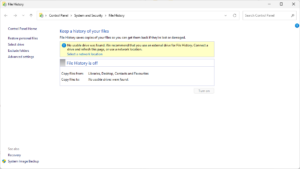
This will give you the possibility to restore any version from (usually) 30 days back. The big advantage of this solution is that it is transparent, and it remembers all deleted files, even if they existed for 1 minute only.
Below is an example of a version history of the default.dsk shown in Dropbox.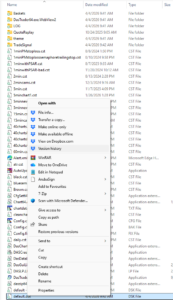
which will lead you to the previous version of file selection
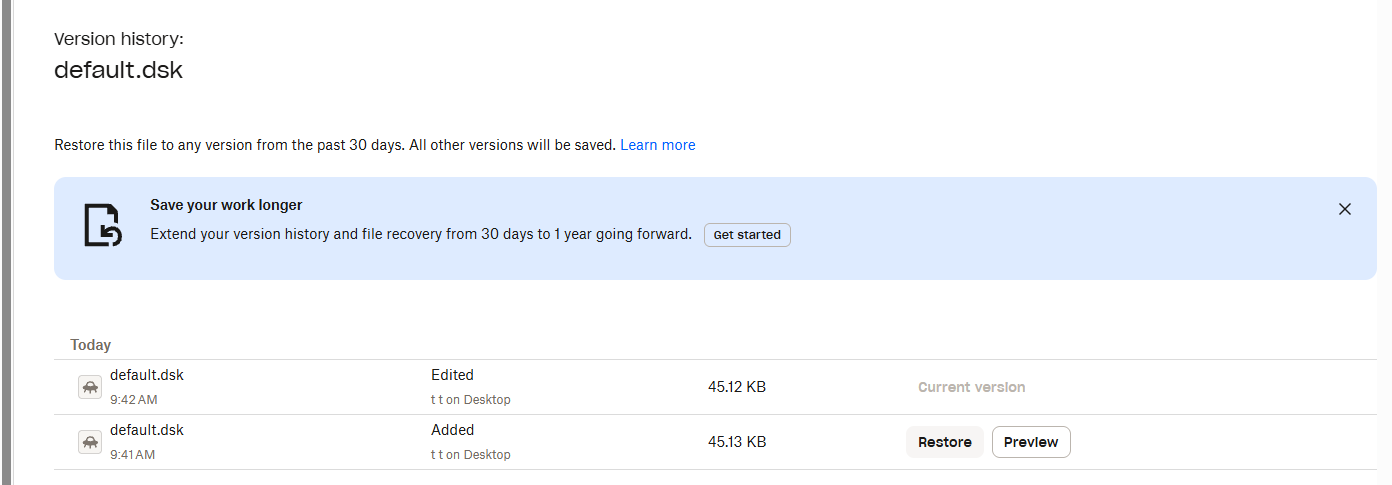
This is my recommended way of doing it. You set it up once and never need to do anything about it. In case of need, just restore the file using the cloud provider tools, which are usually straightforward to use.
More examples from real-life situations
Transfer the DAS Trader Pro between 2 PCs.
Usually needed when you buy a new PC or go travel and want the trading to travel with you.
- install the same version of DAS Trader Pro on the 2nd pc
- copy the contents of the DAS Trader Pro folder from PC1 to PC2, overwriting the contents
- adapt the desktop layout
Sync the new hotkeys to a different PC
Usually needed when you have a travel PC with DAS Trader Pro installed but you made changes to some of the hotkeys.
The laptop screens and desktop PC screens often differ, so copying over as in the previous case would create unnecessary work on the desktop layout reconfiguration.
If you are using hot buttons, there is no way around it (use the previous process), but if you use hotkeys only, you can
- copy the hotkey.htk from the newer configuration to the other PC, overwriting the old file
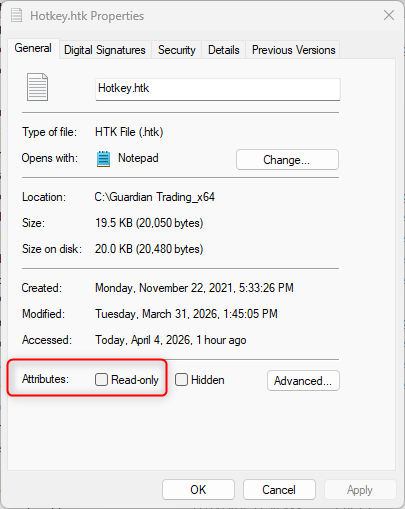
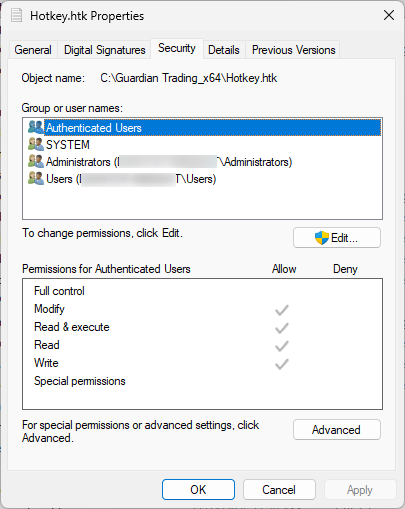
Make sure that after copying the file is writable and the permissions are set correctly.
- read-only un-checked
- Users have Modify Control in Security tab
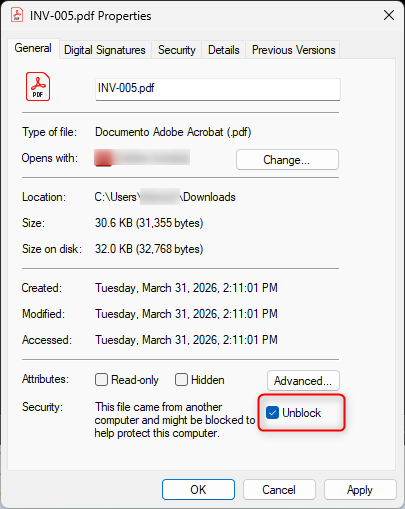
- Sometimes when you download the file through a web browser, it can have the extra security block as shown below - unblock it.
Upgrade DAS Trader Pro to the latest (beta) version
Sometimes it happens that the new version breaks the things that worked before or that you use features that are being changed by the developers of DAS. In that case and all other upgrade cases, I recommend
- use the manual backup solution - create a backup of the folder with copy/paste
- update DAS Trader Pro by installing it to the same folder as before using the standard install procedure
- after days of operation without any problems, delete the manual backup folder and create a new manual backup of the base configuration for daily use
- configure the cloud/storage sync if not in place already
In case of need to go back
- copy over the contents of the backup folder to the DAS Trader Pro installation folder, overwriting all files.
- It is quick (takes 2 seconds) and effective.
There are other solutions available by using sync to a different location using various folder sync utilities or do a proper backup solution with 3rd party software like Acronis, Urbackup or Veeam which you might already have in place, but the small size of the DAS Trader Pro program folder allows us to do quick backups as described above. While I am using such solutions for backups on my PC, restoring from backup with any solution is usually more troublesome than storing a few more megabytes right aside.
For more advanced scripting, you can visit my Substack - Peter's Substack where I elaborate on the newest features, ideas and do custom solutions for specific needs.
Author: PeterB
Disclosure Statement 1. Hotkey scripts should always be thoroughly tested in a paper trading environment prior to any live deployment. Guardian Trading assumes no responsibility for errors, malfunctions, or financial losses arising from the use, misuse, or modification of custom hotkey configurations. Traders are solely responsible for the creation, testing, and implementation of their own scripts.This guide is provided for informational and educational purposes only and does not constitute trading advice or an endorsement of any specific configuration. The examples herein are illustrative in nature and should not be copied, replicated, or relied upon without independent verification and testing. Use of this material constitutes acknowledgment and acceptance of these terms.
2. No information provided by Velocity Clearing, LLC (“Velocity” or the “Firm”), directly or indirectly, should be considered a recommendation or solicitation to adopt any particular trading or investment strategy or to invest in, or liquidate, a particular security or type of security. Information provided by Velocity on its Twitter, Facebook or Blog pages is for informational and educational purposes only and is not intended as a recommendation of any particular security, transaction or strategy. Commentary and opinions expressed are those of the author/speaker and not necessarily those of the Firm. Velocity does not guarantee the accuracy of, or endorse, the statements of any third party, including guest speakers or authors of commentary or news articles. All information regarding the likelihood of potential future investment outcomes are hypothetical. Future results are never guaranteed. Any examples that discuss potential trading profits or losses may not take into account trading commissions or fees, which means that potential profits could be lower and potential losses could be greater than illustrated in any example. Users are solely responsible for making their own, independent decisions about whether to use any of the research, tools or information provided, and for determining their own trading and investment strategies.