

If you're trying to speed up your trading, mastering how you cycle through tickers is a game-changer. Fumbling with your keyboard or clicking around too much can be frustrating.
Here are 6 different ways to get the right symbol onto your charts, ranging from basic mouse clicks to advanced hotkeys.
1. Grab it from the history
If you know you’ve looked at a ticker recently, don’t bother typing it out again. Just pull open your recent history list. If you touched it today, it’s probably sitting right there waiting for you.
2. Use the data config window
The old-school, direct approach. Just click the little icon in the top-left corner of your chart, type the ticker you want, and hit enter. Simple.
3. Drag and drop
If you like using your mouse, this is super intuitive. If you keep a clean watchlist on your screen, you can literally just grab a symbol from the list and drop it right onto the chart you want to change.
4. Just type in the name
Most of the traders do not know about this one. Simply select the chart window, type the symbol name, and hit enter.
5. Hotkey with a prompt (on the chart window)
For the hotkey fans, you can actually set up dedicated hotkeys or buttons right at each individual chart. Click the button, type the symbol when prompted, and that specific chart updates.
This is the code for the hotkey/hot button
$whichsymbol=input("Symbol?",SPY,1);
getwindowobj(NAME).symb=$whichsymbol;
getwindowobj(NAME).getcustbutobj(Button0).text=$whichsymbol;
It changes the chart symbol and the button symbol as well.
Notice how the button text changes based on the chart symbol even if it is changed by the other methods.
This is achieved by this short chart update script on the chart itself
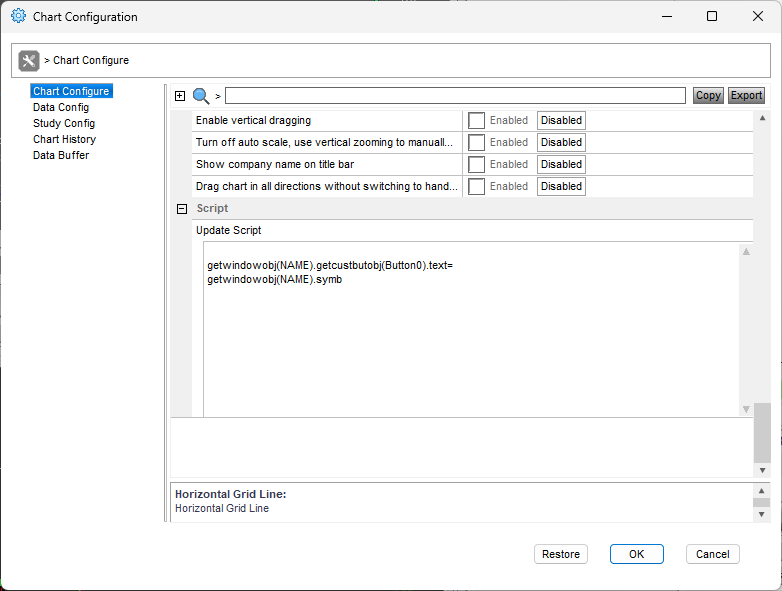
getwindowobj(NAME).getcustbutobj(Button0).text=getwindowobj(NAME).symb
It reads the current chart symbol and changes the text of the button0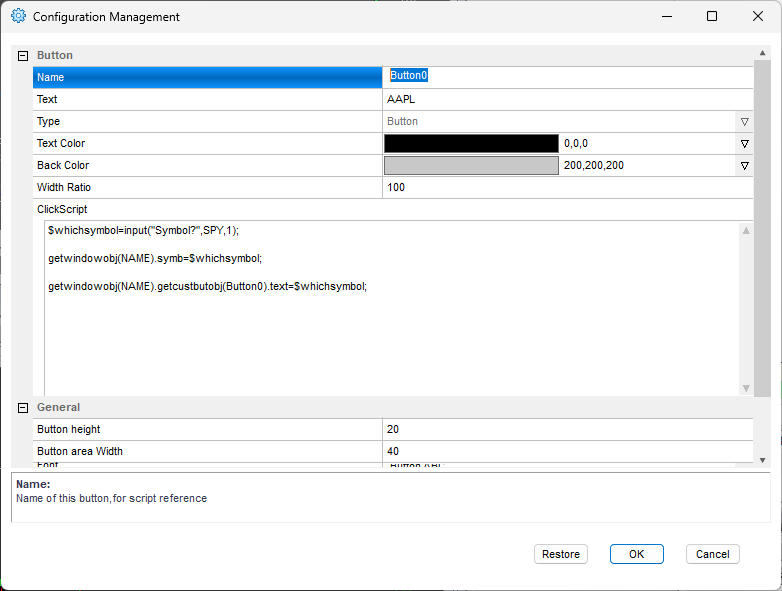
5. Hotkey with a prompt (active window)
If you don't want buttons under your charts, you can map a single global hotkey instead. Pressing it will prompt you for a symbol, and it will only change the chart window you currently have clicked on. The big advantage of this is that it works the same for the chart window and the montage window. Just keep the window in focus (clicked).
6. Send the montage symbol to a specific chart number
This is my personal favorite, and the setup I rely on every single day.
I run six dedicated watchlist charts on my screen, named WATCHCHART1 through WATCHCHART6. Instead of clicking around, I use a dedicated hotkey that triggers a quick prompt. I just type the number of the chart I want to update, and it instantly pulls the active symbol from my montage and throws it onto that chart.
If you would like to try it out, here is the exact script I use to handle it
$whichchart=input("Which Chart?",1,1);
getwindowobj("WATCHCHART"+$whichchart).symb=$montage.SYMBOL;
Similarly, you can retrieve the selected symbol from the watchlist rather than from the montage.
$whichchart=input("Which Chart?",1,1);
getwindowobj("WATCHCHART"+$whichchart).symb=getwindowobj("MYMKTVIEWER").selectedsymbol;
Where MYMKTVIEWER is the name of the watchlist window.
For more advanced scripting, you can visit my Substack - Peter's Substack where I elaborate on the newest features, ideas and do custom solutions for specific needs.
Author: PeterB
Disclosure Statement 1. Hotkey scripts should always be thoroughly tested in a paper trading environment prior to any live deployment. Guardian Trading assumes no responsibility for errors, malfunctions, or financial losses arising from the use, misuse, or modification of custom hotkey configurations. Traders are solely responsible for the creation, testing, and implementation of their own scripts.This guide is provided for informational and educational purposes only and does not constitute trading advice or an endorsement of any specific configuration. The examples herein are illustrative in nature and should not be copied, replicated, or relied upon without independent verification and testing. Use of this material constitutes acknowledgment and acceptance of these terms.
2. No information provided by Velocity Clearing, LLC (“Velocity” or the “Firm”), directly or indirectly, should be considered a recommendation or solicitation to adopt any particular trading or investment strategy or to invest in, or liquidate, a particular security or type of security. Information provided by Velocity on its Twitter, Facebook or Blog pages is for informational and educational purposes only and is not intended as a recommendation of any particular security, transaction or strategy. Commentary and opinions expressed are those of the author/speaker and not necessarily those of the Firm. Velocity does not guarantee the accuracy of, or endorse, the statements of any third party, including guest speakers or authors of commentary or news articles. All information regarding the likelihood of potential future investment outcomes are hypothetical. Future results are never guaranteed. Any examples that discuss potential trading profits or losses may not take into account trading commissions or fees, which means that potential profits could be lower and potential losses could be greater than illustrated in any example. Users are solely responsible for making their own, independent decisions about whether to use any of the research, tools or information provided, and for determining their own trading and investment strategies.