

Since a few versions back, we have the possibility to use hotkey scripts to autolocate shares and submit the located shares to the orders. In this post, I will try to explain some of the techniques on how to make things easier
Let me describe the autolocate process a bit first.
What is "locate"?
To be able to short an HTB (hard to borrow) symbol, we need to locate the shares first. The locate process means to run a query for availability for the shares from non-standard sources. This borrowing of shares comes with a cost, which is different for each symbol and often changes in time as well, usually due to availability, etc. The locates are usually required to be in lots, so at least 100 shares.
How to locate shares manually
It is a multi step process- The short locate window must be opened
- Run the inquiry
- Run the locate
- Accept the offered price (or not)
Prepare the application
Besides the standard application configuration described here, it is needed to have the locate window named. This is required to be able to send the commands directly to the specific window through a window object that we will create.
I named it "locatewindow" and set the property Auto-fill locate share field to Enabled.
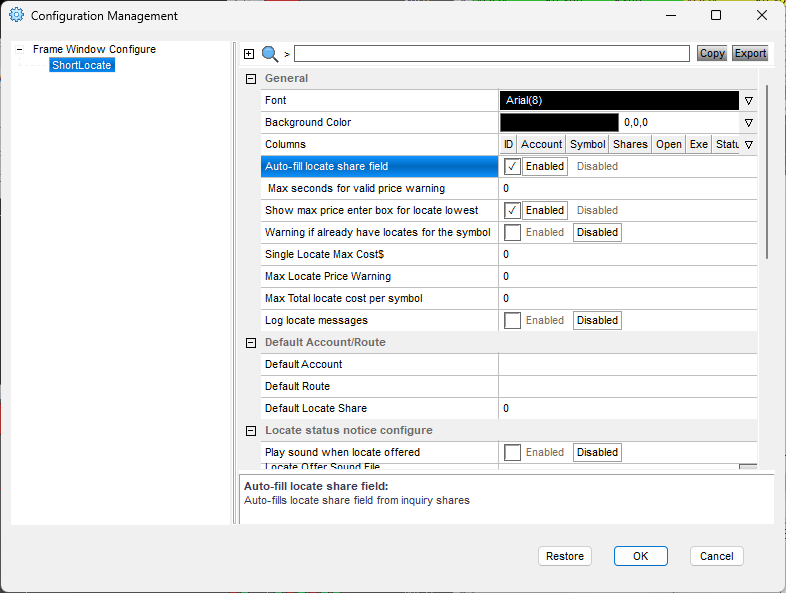
Autolocate hotkey
Now we can create a hotkey or hot button to do the "locate" automatically.getwindowobj("locatewindow").symbol=$montage.symb;
getwindowobj("locatewindow").InquiryShare=100;
getwindowobj("locatewindow").InquireAll;
getwindowobj("locatewindow").locatelowest;
- Line #1: sets the symbol from the montage to the locatewindow
- Line #2: sets the number of shares to locate to 100
- Line #3: calls the Inquire All command
- Line #4: calls the locate
This is practical if you locate only 100 or 200 shares. When finished, the located shares are available for shorting (and you will be charged the locate fee in your daily fees)
Locating a dynamic amount of shares
If you are using static risk for trading, you probably need to locate different amount than 100 shares. Sometimes you might need 58 and sometimes 3245 shares to locate. For this purpose there are functions in the montage object that we can use.Filllocate
$montage.FilllocateThat command will take the shares from the montage and fill them in the autolocate window. We can adapt the above locate script as follows
getwindowobj("locatewindow").symbol=$montage.symb;
$montage.Filllocate
getwindowobj("locatewindow").InquireAll;
getwindowobj("locatewindow").locatelowest;
If you do not have space on the screen for the autolocate window to be opened at all times you can use a semi automatic mode which will open the autolocate window for you and you will do the inquiry and locate manually afterwards. It is done by the command
newwindow shortlocate
How to determine how many shares are located.
As you can see from all the locates I did in the examples above, one easily gets lost on how many shares are located and still available. It can be done in multiple ways. Pop-up window There is a simple command that does it for us, and it needs to be called on the montage object (either a montage button or hotkey addressing the montage). The query is done against the currently selected symbol on the montage.leftlocatequeryor
$montage.leftlocatequerywhich returns
 After I short 3000 shares, it will show me how much is left.

Property/Variable
As you might have guessed, such a text message is informational, and for using it in scripts, there is a better way to read the value.$SHARES_LEFT=$MONTAGE.LocatedThis way we can assign the shares left to a custom variable, which we can display or use for calculations
msgbox("There are "+$montage.located+" shares left");

$montage.share=$montage.located;which assigns all the left shares to the montage shares field
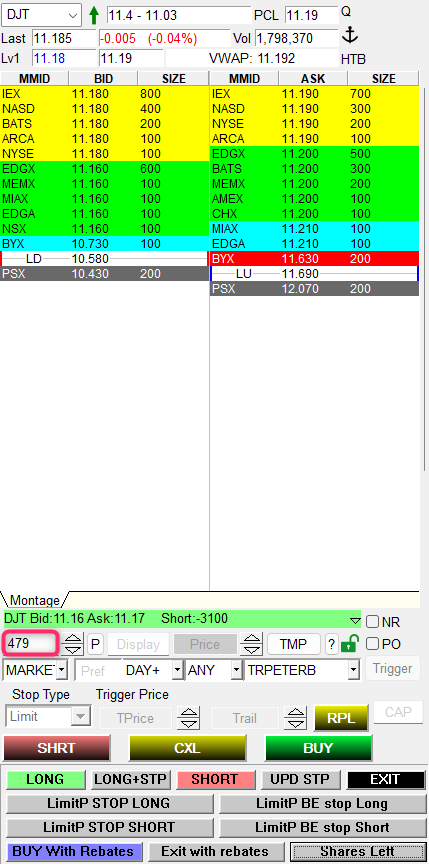
Taking it further
From the above, it is obvious that many combinations are possible and the autolocate needs can be fully automated. There are other functions and commands to be used, and new ones are added by DAS with each new version of DAS Trader Pro.
For example, we can locate up to the size of our max buying power and then short exactly that number of shares in a single hotkey like this
//your Buying Price
$MYBP=100;
//Your max price per share for the locates
$MYMAXPRICE=0.02;
$MONTAGE=GetWindowObj("MONTAGE1");
$MONTAGE.Cxl AllSymb;
$MONTAGE.Share=$MYBP/$MONTAGE.LAST;
$MONTAGE.AutoLocateMaxPrice=$MYMAXPRICE;
$MONTAGE.AutoLocate;
Wait(5000);
$MONTAGE.Route="LIMIT";
$MONTAGE.Price=$MONTAGE.Ask;
$MONTAGE.Share=$MONTAGE.Located;
$MONTAGE.TIF="DAY+";
// This prevents the order from executing.
//$MONTAGE.Load;
// This will execute it if you uncomment it
$MONTAGE.Sell;
For more advanced scripting, you can visit my substack - Peter's Substack where I elaborate on the newest features, ideas and do custom solutions for specific needs.
Author: PeterB
Disclosure Statement 1. Hotkey scripts should always be thoroughly tested in a paper trading environment prior to any live deployment. Guardian Trading assumes no responsibility for errors, malfunctions, or financial losses arising from the use, misuse, or modification of custom hotkey configurations. Traders are solely responsible for the creation, testing, and implementation of their own scripts.This guide is provided for informational and educational purposes only and does not constitute trading advice or an endorsement of any specific configuration. The examples herein are illustrative in nature and should not be copied, replicated, or relied upon without independent verification and testing. Use of this material constitutes acknowledgment and acceptance of these terms.
2. No information provided by Velocity Clearing, LLC (“Velocity” or the “Firm”), directly or indirectly, should be considered a recommendation or solicitation to adopt any particular trading or investment strategy or to invest in, or liquidate, a particular security or type of security. Information provided by Velocity on its Twitter, Facebook or Blog pages is for informational and educational purposes only and is not intended as a recommendation of any particular security, transaction or strategy. Commentary and opinions expressed are those of the author/speaker and not necessarily those of the Firm. Velocity does not guarantee the accuracy of, or endorse, the statements of any third party, including guest speakers or authors of commentary or news articles. All information regarding the likelihood of potential future investment outcomes are hypothetical. Future results are never guaranteed. Any examples that discuss potential trading profits or losses may not take into account trading commissions or fees, which means that potential profits could be lower and potential losses could be greater than illustrated in any example. Users are solely responsible for making their own, independent decisions about whether to use any of the research, tools or information provided, and for determining their own trading and investment strategies.