

Many traders scale-in and scale-out of their positions. Here are some scripting techniques on how to achieve multiple targets.
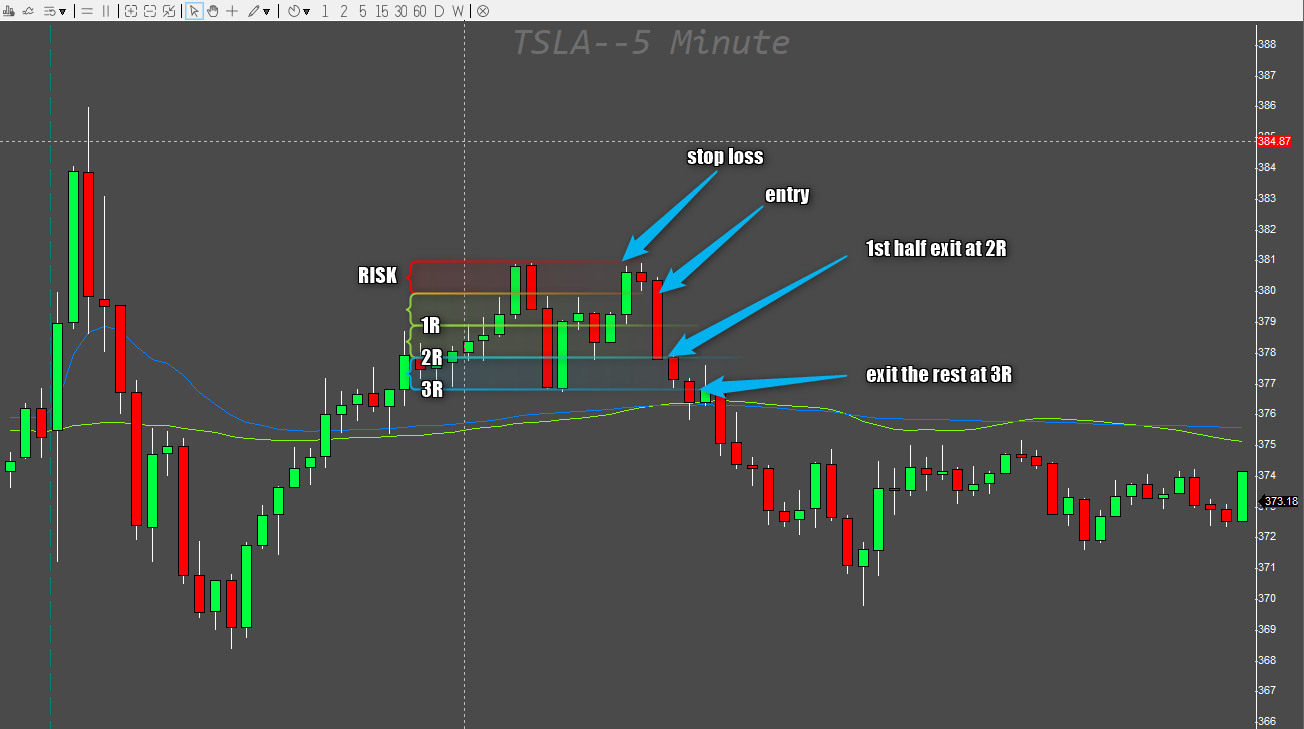 We will place an ordinary stop-loss order, but instead of placing the orders at the targets, we will place price alerts instead. But these alerts need actions, so we need to prepare the hotkeys that we would press when the price reaches the target area.
Let's describe the 3 possible scenarios in this trade
We will place an ordinary stop-loss order, but instead of placing the orders at the targets, we will place price alerts instead. But these alerts need actions, so we need to prepare the hotkeys that we would press when the price reaches the target area.
Let's describe the 3 possible scenarios in this trade
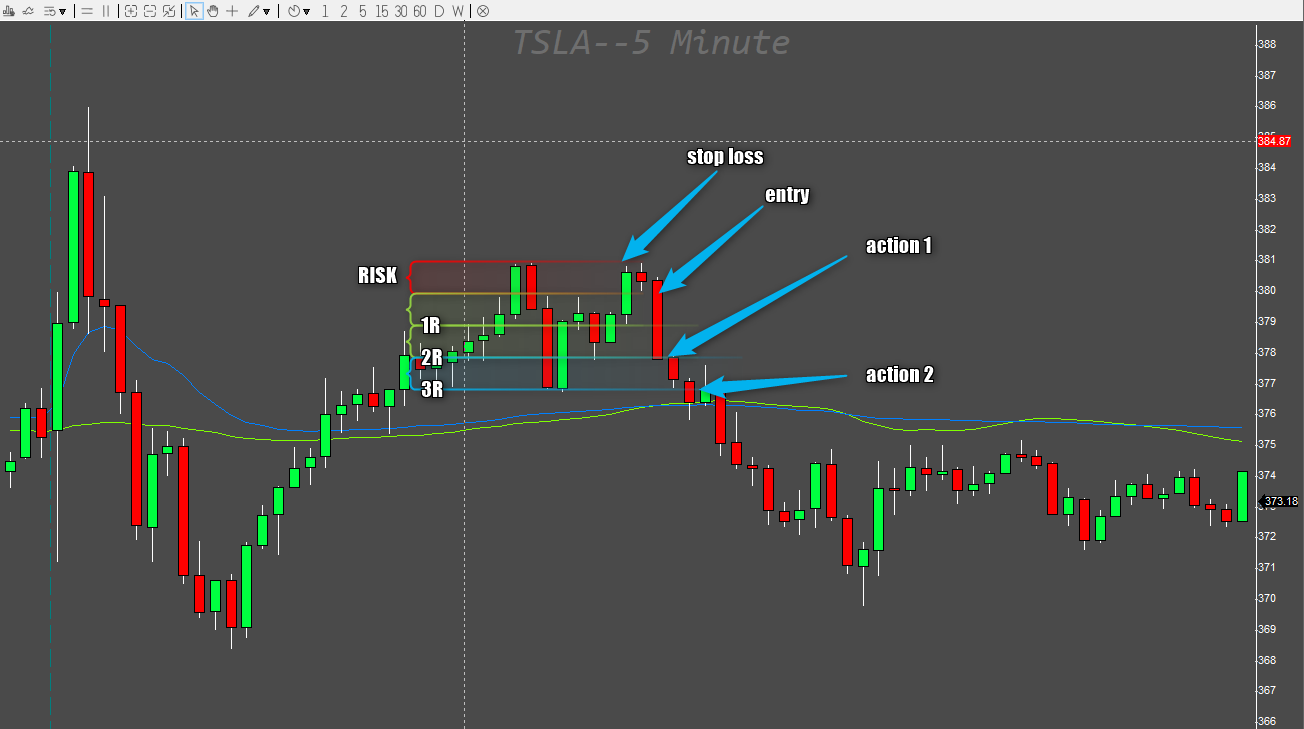 The actions need to be universal for each scenario.
A simple "exit half" action could lead to an unwanted open position in case the alert is reached after we are stopped out of the position.
A stop-loss order cannot call an alert object to be deleted (and the solution that would allow it would require another bulletproof script in place). Therefore, we have to place smart hotkeys into those alerts. Smart in a way that it has to detect whether there is a position open or not. But not only that. We can decide that the actions will be something else than just an exit order. It can be an add-up to the trade instead. Or just moving the stop loss to a different location. We can place any number of actions we need to. We can create another alert for another target and do that every time it moves more in our favor.
An alert has several properties that are very handy for this kind of use.
A property that is very helpful is the autodelete property. Basically, the moment the alert gets triggered, it will call for the action and delete itself.
Another property of an alert is the "triggered" property. This marks the alert as used once it gets triggered, so only one execution is guaranteed.
Now you can see the possibilities that are opened to us, but let's get back to our simple example of having action 1 and action 2.
The actions need to be universal for each scenario.
A simple "exit half" action could lead to an unwanted open position in case the alert is reached after we are stopped out of the position.
A stop-loss order cannot call an alert object to be deleted (and the solution that would allow it would require another bulletproof script in place). Therefore, we have to place smart hotkeys into those alerts. Smart in a way that it has to detect whether there is a position open or not. But not only that. We can decide that the actions will be something else than just an exit order. It can be an add-up to the trade instead. Or just moving the stop loss to a different location. We can place any number of actions we need to. We can create another alert for another target and do that every time it moves more in our favor.
An alert has several properties that are very handy for this kind of use.
A property that is very helpful is the autodelete property. Basically, the moment the alert gets triggered, it will call for the action and delete itself.
Another property of an alert is the "triggered" property. This marks the alert as used once it gets triggered, so only one execution is guaranteed.
Now you can see the possibilities that are opened to us, but let's get back to our simple example of having action 1 and action 2.
Just split the orders
This is the simplest solution. Place 2 range orders (because stop-loss orders are good to have) instead of just one. Here is the hotkey for a LONG position with the 1st target at 2R distance and the 2nd target at 3R distance// entry hotkey with automatic stop loss and 2 different targets $MONTAGE.CXL ALLSYMB; $buyprice=$MONTAGE.Ask; $risk=20; $mystop=$MONTAGE.price; $pricetostop=$buyprice-$mystop; $target1=2*$pricetostop+Ask; $target2=3*$pricetostop+Ask; $amount=$risk/$pricetostop; $MONTAGE.Share=$amount; $MONTAGE.ROUTE="LIMIT"; $MONTAGE.Price=Round($buyprice,2); $MONTAGE.TIF=DAY+; $MONTAGE.BUY; // wait for fill wait(2000); // calculate the split positions $amount=round($montage.pos/2,0); $rest=$montage.pos-$amount; // higher target 2 $MONTAGE.ROUTE="STOP"; $MONTAGE.StopType="RANGEMKT"; $MONTAGE.StopPrice=$mystop; $MONTAGE.Lowprice=$mystop; $MONTAGE.Highprice=$target2; $MONTAGE.Share=$rest; $MONTAGE.TIF=DAY+; $MONTAGE.SELL; // lower target 1 $MONTAGE.ROUTE="STOP"; $MONTAGE.StopType="RANGEMKT"; $MONTAGE.StopPrice=$mystop; $MONTAGE.Lowprice=$mystop; $MONTAGE.Highprice=$target1; $MONTAGE.Share=$amount; $MONTAGE.TIF=DAY+; $MONTAGE.SELL;Double-click the chart where you want to set the stop, and it sends the entry order for the desired risk. Then it waits 2 seconds for the order to fill, and after that it places 2 separate range orders. The tricky part is to calculate the position size properly, not just place a half for each order. Having 61 shares, splitting it in half would give us 2 orders with 31 shares because of the rounding, leaving us with 1 share short in case the stop loss is hit. In the worst case, the order would be declined if the symbol is not shortable or the buying power is not enough to cover the 1 share extra. That is the reason why calculating the remainder after division by 2 is needed. This approach is good if you usually enter with one order. After you add up or take a partial sooner, this approach becomes insufficient. The big advantage of this approach is the fire-and-forget mode. Your orders are already placed at the brokers, so you can leave the PC and close DAS Trader Pro and they will execute. The disadvantage is that range orders work only during market hours, so it is not a solution suitable for extended hours trading.
Place alerts at the targets
This approach requires your PC and DAS Trader Pro to stay on It also requires some planning ahead in terms of hotkeys on what we want to do at a specific price level. Let's take the example from the previous hotkey. One entry and 2 different exit targets. 2R and 3R distance from the entry.
We will place an ordinary stop-loss order, but instead of placing the orders at the targets, we will place price alerts instead. But these alerts need actions, so we need to prepare the hotkeys that we would press when the price reaches the target area.
Let's describe the 3 possible scenarios in this trade
Scenario 1 - the trade goes as planned for both targets
In this case we need to- exit half at target 1 and update the stop loss position with the remaining shares (and optionally adapt the stop loss)
- exit the rest at target 2 and cancel the stop loss order
Scenario 2 - only the 1st target is hit
In this case we need to- exit half at target 1 and update the stop loss position with the remaining shares (and optionally adapt the stop loss)
- exit the trade at the stop loss
Scenario 3 - the stop loss is hit
In this case we need to- exit the trade at the stop loss
The problem with the placed alerts
In scenarios 2 and 3, we will be left with alerts in place as there is no action to cancel them. They need to be understood as actions.
The actions need to be universal for each scenario.
A simple "exit half" action could lead to an unwanted open position in case the alert is reached after we are stopped out of the position.
A stop-loss order cannot call an alert object to be deleted (and the solution that would allow it would require another bulletproof script in place). Therefore, we have to place smart hotkeys into those alerts. Smart in a way that it has to detect whether there is a position open or not. But not only that. We can decide that the actions will be something else than just an exit order. It can be an add-up to the trade instead. Or just moving the stop loss to a different location. We can place any number of actions we need to. We can create another alert for another target and do that every time it moves more in our favor.
An alert has several properties that are very handy for this kind of use.
A property that is very helpful is the autodelete property. Basically, the moment the alert gets triggered, it will call for the action and delete itself.
Another property of an alert is the "triggered" property. This marks the alert as used once it gets triggered, so only one execution is guaranteed.
Now you can see the possibilities that are opened to us, but let's get back to our simple example of having action 1 and action 2.
The entry short hotkey
To keep track of the original stop loss, we will use the technique I described earlier in https://www.guardiantrading.com/das-trader-pro-how-to-save-the-stop-loss-price-value-for-later/ The hotkey will call for 2 alerts creation 1 second after the stop-loss order is sent.$MONTAGE=GetWindowObj("MONTAGE1");
$MONTAGE.CXL ALLSYMB;
$sellprice=$MONTAGE.bid;
$risk=20;
// Use LimitP stop in 4:00 AM - 9:30 AM and 4:00 PM-8:00 PM
$STOPTYPE="LimitP";
if(getsecond()>34200)
{
if(getsecond()<57600)
{
// Standard stop type during normal hours. Change as necessary
$STOPTYPE="MARKET";
}
}
$mystop=$MONTAGE.price;
$Offset=$mystop*1.02;
// Rounding of Offset Price
if($Offset<1)
{
$Offset=Round($Offset,4);
}
else
{
$Offset=Round($Offset,2);
}
// Rounding of STOP Price
if($EntryPrice<1)
{
$mystop=Round($mystop,4);
}
else
{
$mystop=Round($Emystop,2);
}
setvar("STOP_"+$montage.symbol,$mystop);
$pricetostop=$mystop-$sellprice;
// set the action 1 price at 2R
setvar("ACTION1_"+$montage.symbol,$montage.bid-$pricetostop*2);
// set the action 2 price at 3R
setvar("ACTION2_"+$montage.symbol,$montage.bid-$pricetostop*3);
$amount=$risk/$pricetostop;
$MONTAGE.share=$amount;
$MONTAGE.ROUTE="LIMIT";
$MONTAGE.Price=Round($sellprice*0.995,2);
$MONTAGE.TIF="DAY+";
$MONTAGE.Sell;
$Montage.TriggerOrder=RT:STOP STOPTYPE:$STOPTYPE PX:$Offset ACT:BUY STOPPrice:$mystop QTY:Pos TIF:DAY+;
wait(1000);
//$montage.exechotkey("f_place_alert_action1_short");
// f_place_alert_action1_short
// place alert at 1R
$WHEN=getvar("ACTION1_"+SYMBOL);
$MYALERT=NewAlertObj();
$MYALERT.name="Action1_"+SYMB;
$MYALERT.AddItem("Last Sale","<",$WHEN);
$MYALERT.Speak=0;
$MYALERT.SYMB=SYMB;
$MYALERT.PlaySound=0;
$MYALERT.Autodelete=1;
$MYALERT.PopupWindow=1;
$MYALERT.Loop=0;
$MYALERT.Script="$montage.symbol="+SYMB+";$montage.exechotkey\(\"h_exit_half_short\"\);";
$MYALERT.save();
// place alert at 2R
$WHEN=getvar("ACTION2_"+SYMBOL);
$MYALERT=NewAlertObj();
$MYALERT.name="Action2_"+SYMB;
$MYALERT.AddItem("Last Sale","<",$WHEN);
$MYALERT.Speak=0;
$MYALERT.SYMB=SYMB;
$MYALERT.PlaySound=0;
$MYALERT.Autodelete=1;
$MYALERT.PopupWindow=1;
$MYALERT.Loop=0;
$MYALERT.Script="$montage.symbol="+SYMB+";$montage.exechotkey\(\"h_exit_rest_short\"\);";
$MYALERT.save();
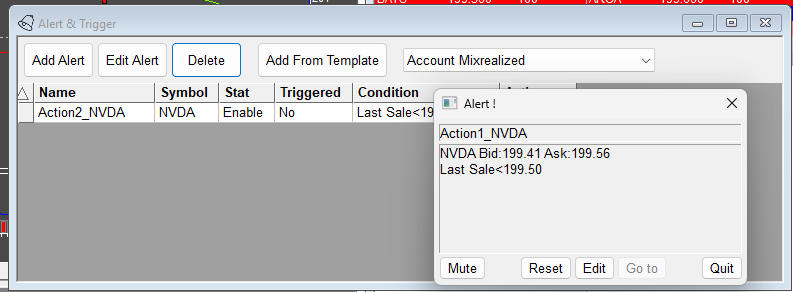
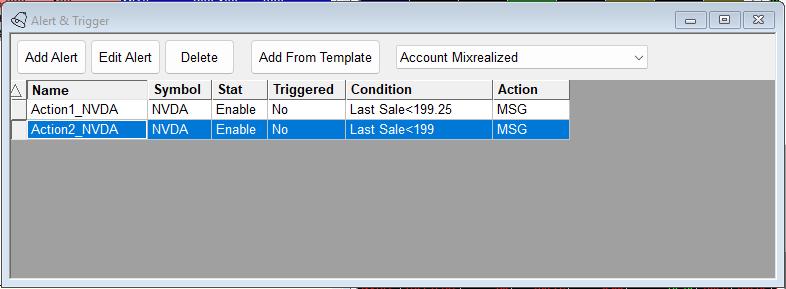
This will open the order and create 2 alerts as shown in the next video
Notice the newly created alerts are showing as non-triggered.
Action 1 hotkey
We need the hotkey to:- Change the montage focus to our symbol (done in the alert itself)
- Detect the position size
- Cancel all previous orders for the symbol
- Exit half if >0 (or all if only 1 share position is held)
- Update the stop loss with the actual position size
// h_exit_half_short
// set the desired exit route
$ROUTE="LIMIT";
$MYPOS=GetAccountObj($MONTAGE.account).getposition($MONTAGE.symb).share;
$mystop=getvar("STOP_"+$montage.symbol);
$Offset=$mystop*1.02;
// Rounding of Offset Price
if($Offset<1)
{
$Offset=Round($Offset,4);
}
else
{
$Offset=Round($Offset,2);
}
// Rounding of STOP Price
if($EntryPrice<1)
{
$mystop=Round($mystop,4);
}
else
{
$mystop=Round($Emystop,2);
}
if($MYPOS==0)
{return;}
// Use LimitP stop in 4:00 AM - 9:30 AM and 4:00 PM-8:00 PM
$STOPTYPE="LimitP";
if(getsecond()>34200)
{
if(getsecond()<57600)
{
// Standard stop type during normal hours. Change as necessary
$STOPTYPE="MARKET";
}
}
$MONTAGE=GetWindowObj("MONTAGE1");
$MONTAGE.CXL ALLSYMB;
$MONTAGE.ROUTE=$ROUTE;
$MONTAGE.Price=Round($MONTAGE.ASK*1.01,2);
// Rounding of Price
if($MONTAGE.Price<1)
{
$MONTAGE.Price=Round($MONTAGE.Price,4);
}
// detect if it is the last share
if(ABS($MYPOS)==1)
{
$MONTAGE.Share=$MYPOS;
}
else
{
$MONTAGE.Share=$MONTAGE.Pos*0.5;
}
$MONTAGE.TIF="DAY+";
$MONTAGE.BUY;
$MONTAGE.TriggerOrder=RT:STOP STOPTYPE:$STOPTYPE PX:$Offset ACT:BUY STOPPrice:$mystop QTY:Pos TIF:DAY+;
Once it triggers the price, it
- Pops a message
- Executes the alert script
- Deletes the Action1 alert
Action 2 hotkey
This time we need the hotkey- Change the montage focus to our symbol (done in the alert itself)
- Detect the position size
- Cancel all previous orders for the symbol
- Exit everything left
// h_exit_rest_short
// set the desired exit route
$ROUTE="LIMIT";
$MYPOS=GetAccountObj($MONTAGE.account).getposition($MONTAGE.symb).share;
$mystop=getvar("STOP_"+$montage.symbol);
$Offset=$mystop*1.02;

if($MYPOS==0)
{return;}

$MONTAGE=GetWindowObj("MONTAGE1");
$MONTAGE.CXL ALLSYMB;
$MONTAGE.ROUTE=$ROUTE;
$MONTAGE.Price=Round($MONTAGE.ASK*1.01,2);
// Rounding of Price
if($MONTAGE.Price<1)
{
$MONTAGE.Price=Round($MONTAGE.Price,4);
}
$MONTAGE.Share=$MONTAGE.Pos;
$MONTAGE.TIF="DAY+";
$MONTAGE.BUY;
The script is much simpler as it deals just with the exit and no stop-loss placements.
Once it triggers, the position gets zeroed as shown in the video below
I am intentionally keeping the hotkeys separate for long and short positions, as merging them into one will be harder to read and understand. It is absolutely possible to do, though.
Alerts management
It is essential to keep track of the alerts and have the window opened all the time and delete the alerts that are not needed. For example, in situations when you place an order and get stopped out but intend to re-enter the same symbol again. In that case the old alerts are safe to be there, but once you open a new position, it will place a new set of alerts, so the old ones need to be deleted. This can be done manually, or you can add it as a first step in the entry hotkey to delete all the previously existing alerts. You can do that with the techniques described in the previous article, https://www.guardiantrading.com/das-trader-pro-how-to-create-alerts-with-hotkeys/ For more advanced scripting, you can visit my Substack - Peter's Substack where I elaborate on the newest features, ideas and do custom solutions for specific needs.
Author: PeterB
Disclosure Statement 1. Hotkey scripts should always be thoroughly tested in a paper trading environment prior to any live deployment. Guardian Trading assumes no responsibility for errors, malfunctions, or financial losses arising from the use, misuse, or modification of custom hotkey configurations. Traders are solely responsible for the creation, testing, and implementation of their own scripts.This guide is provided for informational and educational purposes only and does not constitute trading advice or an endorsement of any specific configuration. The examples herein are illustrative in nature and should not be copied, replicated, or relied upon without independent verification and testing. Use of this material constitutes acknowledgment and acceptance of these terms.
2. No information provided by Velocity Clearing, LLC (“Velocity” or the “Firm”), directly or indirectly, should be considered a recommendation or solicitation to adopt any particular trading or investment strategy or to invest in, or liquidate, a particular security or type of security. Information provided by Velocity on its Twitter, Facebook or Blog pages is for informational and educational purposes only and is not intended as a recommendation of any particular security, transaction or strategy. Commentary and opinions expressed are those of the author/speaker and not necessarily those of the Firm. Velocity does not guarantee the accuracy of, or endorse, the statements of any third party, including guest speakers or authors of commentary or news articles. All information regarding the likelihood of potential future investment outcomes are hypothetical. Future results are never guaranteed. Any examples that discuss potential trading profits or losses may not take into account trading commissions or fees, which means that potential profits could be lower and potential losses could be greater than illustrated in any example. Users are solely responsible for making their own, independent decisions about whether to use any of the research, tools or information provided, and for determining their own trading and investment strategies.