

Use Case: Accountability in Trading
The core objective here is simple: enforcing trading accountability.
Consider this: Would your execution and discipline change if someone else immediately knew you were overtrading or continuing to trade while down significantly? Does your trading partner know your exact daily metrics? Does your family?
By pairing this technique with trade counter setups or implementing custom input box prompts, you can add powerful guardrails to maintain discipline. For example, you can set an automated workflow to send your live realized P&L directly to an accountability partner every day at 10:00 AM.
Prerequisites
-
Register for an account at Twilio.
-
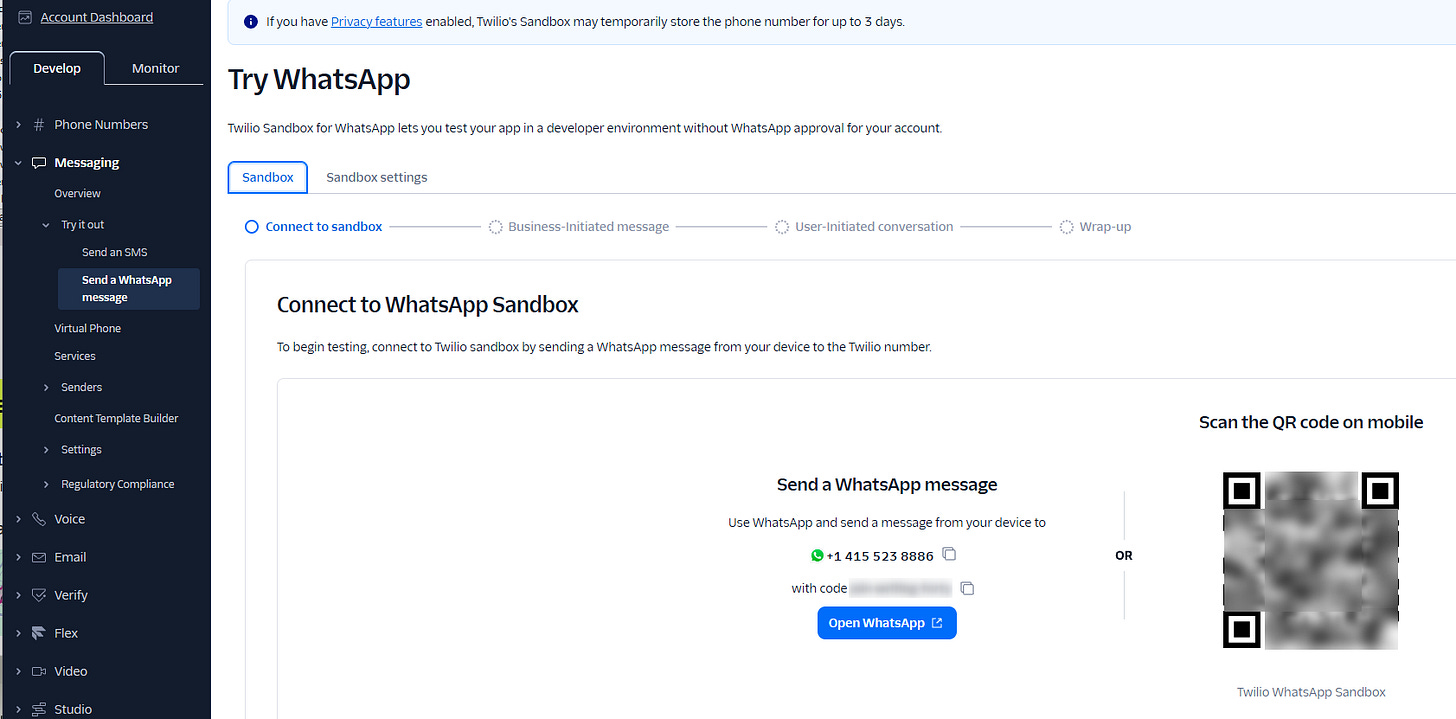
Set up a WhatsApp Sandbox environment inside the Twilio Console.
-
Follow the setup prompts to connect your mobile device to the sandbox (via QR code or texting the join code).
-
Save your Account SID and Auth Token from the dashboard.
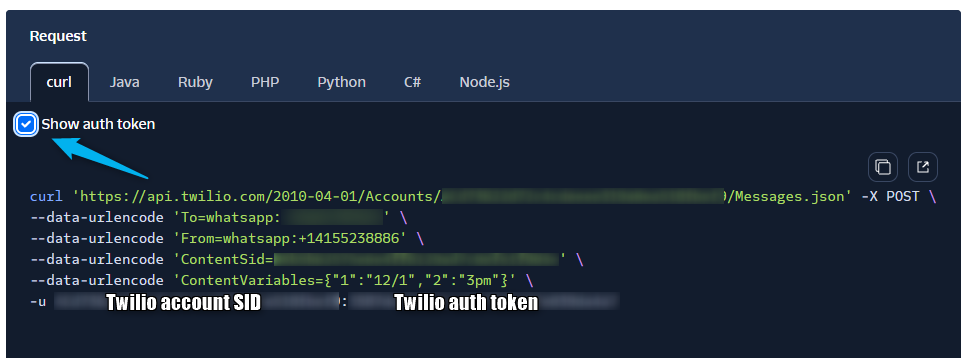

The rest of the work is on your PC.
Step 1: Create the PowerShell Reporting Script
Create a script that reads your P&L, logs it locally, and sends the notification via Twilio’s API.
Save the following code as pnlreporter.ps1 in your main DAS Trader Pro installation directory (e.g., C:\Guardian Trading_x64):
# ==============================
# USER CONFIGURATION
# ==============================

$twilioAccountSid = "your SID goes here"
$twilioAuthToken = "your auth token goes here"
$fromWhatsApp = "whatsapp:+14155238886" # Twilio WhatsApp number
$toWhatsApp = "whatsapp:+11111111111" # Your Whatsapp Phone number
$DASInstalpath = "C:\Guardian Trading_x64" # your DAS install path

$logFolder = "C:\Logs"
$logFile = "$logFolder\pnl.log"

# ==============================
# ENSURE LOG FOLDER EXISTS
# ==============================

if (-not (Test-Path $logFolder)) {
New-Item -ItemType Directory -Path $logFolder | Out-Null
}

# ==============================
# READ THE P&L adapt the path to your DAS installation path
# ==============================
$content = Get-Content -Path "$DASInstalpath\pnl.txt"

$PNL = ($content | Where-Object { $_ -match '^\$PNL\s*=' }) `
-replace '^\$PNL\s*=\s*', '' `
-replace ';', ''


# ==============================
# BUILD SIGNED MESSAGE
# ==============================

$timestamp = Get-Date -Format "yyyy-MM-dd HH:mm:ss"

$signedMessage = @"
My P&L for the day is: $PNL

---
PeterB
"@

# ==============================
# LOG TO FILE
# ==============================

$logEntry = @"
[$timestamp]
$signedMessage
----------------------------------------
"@

Add-Content -Path $logFile -Value $logEntry

# ==============================
# SEND TO WHATSAPP (TWILIO)
# ==============================

$pair = "$($twilioAccountSid):$($twilioAuthToken)"
$encodedCreds = [Convert]::ToBase64String(
[Text.Encoding]::ASCII.GetBytes($pair)
)

$headers = @{
Authorization = "Basic $encodedCreds"
}

$body = @{
From = $fromWhatsApp
To = $toWhatsApp
Body = $signedMessage
}

Invoke-RestMethod `
-Uri "https://api.twilio.com/2010-04-01/Accounts/$twilioAccountSid/Messages.json" `
-Method Post `
-Headers $headers `
-Body $body `
| Out-Null

Step 2: Configure the DAS Trader Pro Hotkey
This script performs three sequential steps:
-
Queries the realized P&L for the active account and assigns it to a global variable.
-
Writes the variable data to an external text file.
-
Launches the PowerShell script to send the notification.
This logic can be executed manually via a hotkey button or invoked automatically by a time-monitoring alert system.
// Retrieve the P&L
$PNL=getaccountobj($montage.account).realized;

// save variables to a file
savevartofile("pnl.txt");

// call the powershell script
ShellExec("powershell.exe","-file \"C:\\Guardian Trading_x64\\pnlreporter.ps1\"","\"C:\\Guardian Trading_x64\\\"");
You can save the hotkey and name it f_pnlreporter
Step 3: Scheduling the Hotkey Execution
Depending on your preference, you can choose when to trigger the script. Common options include executing the hotkey immediately whenever a trade is closed or scheduling it to run automatically at a specific time of day.
we can run the following code in the timer event script:
if (getsectond()==36000)
{exechotkey("f_pnlreporter")};

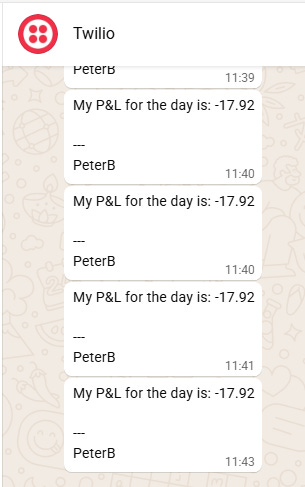
to get it run exactly at 10:00 AM, which will get you a message in the Whatsapp of the recipient like this.
Twilio Billing and Ongoing Expenses
Once testing is complete, you will need to add account credit to Twilio to cover ongoing messaging costs. The expenses are minimal—a $5 credit deposit will cover roughly 1,000 messages. While minor recurring fees may apply (such as a standard monthly charge of around $1.15 for maintaining a dedicated phone number), overall operational costs remain negligible.
For more advanced scripting, you can visit my Substack - Peter's Substack where I elaborate on the newest features, ideas and do custom solutions for specific needs.
Author: PeterB
Disclosure Statement 1. Hotkey scripts should always be thoroughly tested in a paper trading environment prior to any live deployment. Guardian Trading assumes no responsibility for errors, malfunctions, or financial losses arising from the use, misuse, or modification of custom hotkey configurations. Traders are solely responsible for the creation, testing, and implementation of their own scripts.This guide is provided for informational and educational purposes only and does not constitute trading advice or an endorsement of any specific configuration. The examples herein are illustrative in nature and should not be copied, replicated, or relied upon without independent verification and testing. Use of this material constitutes acknowledgment and acceptance of these terms.
2. No information provided by Velocity Clearing, LLC (“Velocity” or the “Firm”), directly or indirectly, should be considered a recommendation or solicitation to adopt any particular trading or investment strategy or to invest in, or liquidate, a particular security or type of security. Information provided by Velocity on its Twitter, Facebook or Blog pages is for informational and educational purposes only and is not intended as a recommendation of any particular security, transaction or strategy. Commentary and opinions expressed are those of the author/speaker and not necessarily those of the Firm. Velocity does not guarantee the accuracy of, or endorse, the statements of any third party, including guest speakers or authors of commentary or news articles. All information regarding the likelihood of potential future investment outcomes are hypothetical. Future results are never guaranteed. Any examples that discuss potential trading profits or losses may not take into account trading commissions or fees, which means that potential profits could be lower and potential losses could be greater than illustrated in any example. Users are solely responsible for making their own, independent decisions about whether to use any of the research, tools or information provided, and for determining their own trading and investment strategies.