

This is a continuation of the previous post https://www.guardiantrading.com/das-trader-pro-how-to-target-vwap/ where I showed how to target the VWAP. Knowing that we can read any indicator/study into a variable this one will show how to monitor for an event like "The price crossing a moving average"
With this technique, it is possible to monitor for any event present on the chart. Being moving average crossings, price action crossing studies etc.
Objectives
- monitor for the price crossing a moving average
- take an action in such event
Case study
For this example let's say we want to exit an existing position, if the price goes below a moving average.
This can be used in multiple scenarios
- as a target profit taking as from the previous article
- as a stop loss
- as a notification
While a standard alert that monitors a variable looks like this,
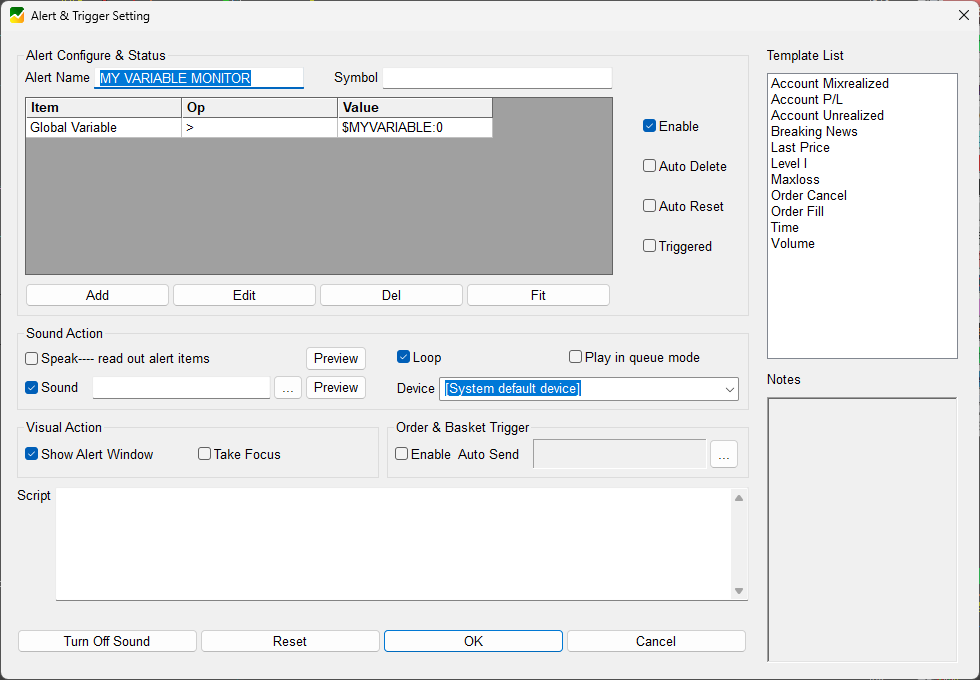
it monitors for the absolute value specified in the alert. Meaning, if the value is higher than 0, it will trigger the alert. The comparison of 2 variables is just not possible yet, so we will need to find a workaround.
The workaround
Simply enough, we can run the comparison logic endlessly in the chart update script and monitor just for the event when the condition is true.
Example:
If the price is below the 50 Simple Moving Average, return 1, otherwise return 0.
Preparations
Studies and the chart update script
First of all, we need to know the moving average value as it changes in real time. This has been explained in the previous posts: https://www.guardiantrading.com/das-trader-pro-reading-study-values/ and https://www.guardiantrading.com/das-trader-pro-how-to-save-the-stop-loss-price-value-for-later
To achieve that, we need a dedicated chart that will display the symbol chart with the study. The chart has to contain at least 2 studies. The price study and the moving average study. Both need to have a custom name that will be used in the scripts.
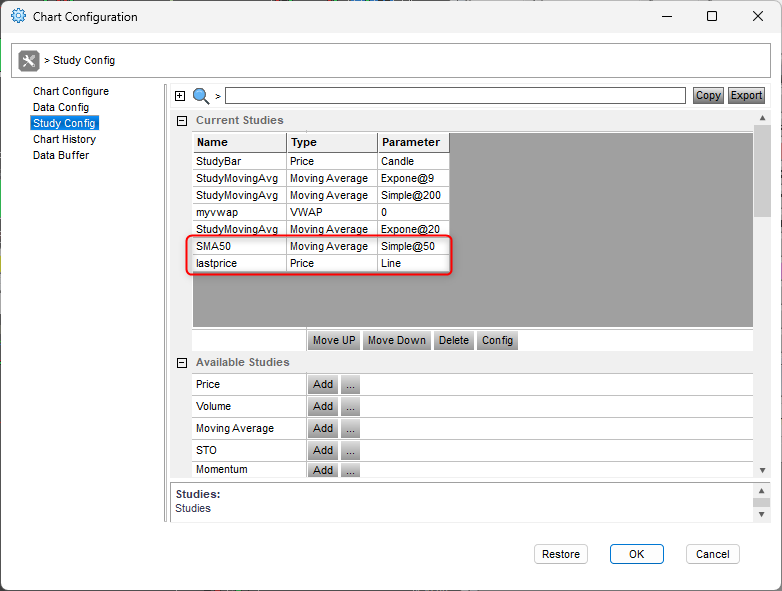
To read the current symbol's moving average value, we need a chart update script in the dedicated chart.
After that, we need to compare those values and return the resulting status variable. Our status variable will be called
PR_BLW_50_SYMB (short for Price Below 50 SMA)
For example, for Tesla it will be dynamically named PR_BLW_50_TSLA, for Intel it will be PR_BLW_50_INTC and so on.
setvar("SMA50_"+SYMB,getwindowobj(NAME).getstudyval("SMA50"));
setvar("LASTPRICE_"+SYMB,getwindowobj(NAME).getstudyval("LASTPRICE"));
if (getvar("SMA50_MON_ENABLED_"+SYMB)>0)
{
if (getvar("LASTPRICE_"+SYMB)<getvar("SMA50_"+SYMB))
{
setvar("PR_BLW_50_"+SYMB,1);
}
else
{
setvar("PR_BLW_50_"+SYMB,0);
}
}
else
{
delvar("PR_BLW_50_"+SYMB);
}
The script also contains a check if the functionality is enabled or disabled. In case it is disabled, it will delete the variable completely so it can never be >0 if disabled even as a leftover.
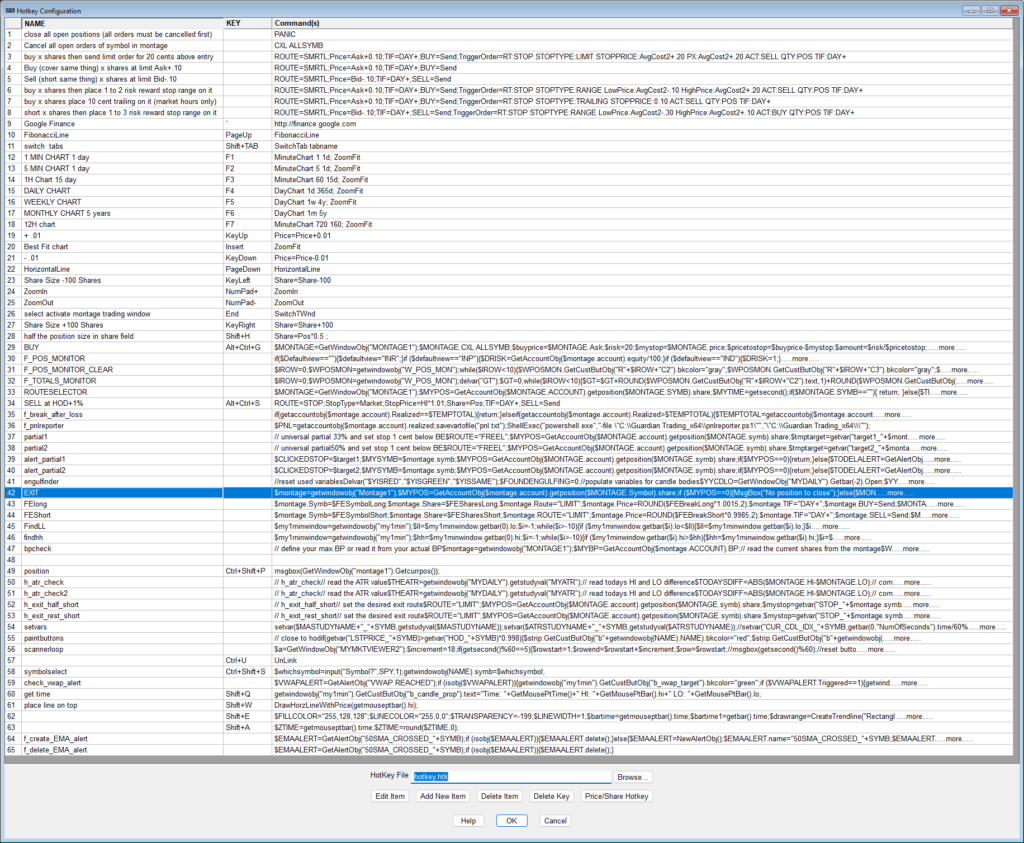
The exit hotkey
This is the universal exit hotkey from the previous post https://www.guardiantrading.com/das-trader-pro-universal-exit-hotkey-function-for-all-market-hours/ . It needs to be named as Exit
$montage=getwindowobj("Montage1");
$MYPOS=GetAccountObj($montage.account).getposition($MONTAGE.Symbol).share;
if ($MYPOS==0)
{
MsgBox("No position to close");
}
else
{
$MONTAGE.CXL ALLSYMB;
if ($MYPOS>0)
{
$Montage.price=$montage.last*0.98;
}
else
{
$Montage.price=$montage.last*1.02;
}
if ($MONTAGE.price>=1)
{
$MONTAGE.Price=Round($Montage.price,2);
}
else
{
$MONTAGE.Price=Round($Montage.price,4);
}
//set your exit route
$MONTAGE.ROUTE="LIMIT";
$MONTAGE.Share=$MONTAGE.POS;
$MONTAGE.Send=Reverse;
}
Create and delete alert hotkeys
Let's create two named hotkeys, which we will use as functions later on
f_create_EMA_alert
$EMAALERT=GetAlertObj("50SMA_CROSSED_"+SYMB);
if (isobj($EMAALERT))
{
$EMAALERT.delete();
}
else
{
$EMAALERT=NewAlertObj();
$EMAALERT.name="50SMA_CROSSED_"+SYMB;
$EMAALERT.AddItem("Global Variable",">","$PR_BLW_50_"+SYMB+":0");
$EMAALERT.Script="$montage.symbol="+SYMB+";$montage.exechotkey\(\"EXIT\"\);";
$EMAALERT.save();
}
and
f_delete_EMA_alert
$EMAALERT=GetAlertObj("50SMA_CROSSED_"+SYMB);
if (isobj($EMAALERT))
{
$EMAALERT.delete();
}
As their titles say, they will create and delete the alert objects when called.
The enable/disable functionality button
We need a button under each chart where we want to monitor the event. The button needs to be named b_monitor_SMA50 so that we can change its colors in the script.
The button script goes as below:
if (getvar("SMA50_MON_ENABLED_"+SYMB)>0)
{
setvar("SMA50_MON_ENABLED_"+SYMB,0);
getwindowobj("my1min").GetCustButObj("b_monitor_SMA50").bkcolor="gray";
exechotkey("f_delete_ema_alert");
}
else
{
setvar("SMA50_MON_ENABLED_"+SYMB,1);
getwindowobj("my1min").GetCustButObj("b_monitor_SMA50").bkcolor="green";
exechotkey("f_create_ema_alert");
}
The code works as a toggle.
If the functionality is enabled
- It disables it,
- Sets the button color to grey,
- Calls the delete EMA alert hotkey to delete the alert object
If the functionality is disabled
- It enables it,
- Sets the button color to green
- Calls the create EMA alert hotkey to create the alert object
See it in action
Notice how the alert triggers when the price crosses the green MA on the chart and how the button press creates and deletes the alert object in the Alert & Trigger window.
For more advanced scripting, You can visit my substack - Peter's Substack where I elaborate on the newest features, ideas and do custom solutions for specific needs.
Author: PeterB
Disclosure Statement 1. Hotkey scripts should always be thoroughly tested in a paper trading environment prior to any live deployment. Guardian Trading assumes no responsibility for errors, malfunctions, or financial losses arising from the use, misuse, or modification of custom hotkey configurations. Traders are solely responsible for the creation, testing, and implementation of their own scripts.This guide is provided for informational and educational purposes only and does not constitute trading advice or an endorsement of any specific configuration. The examples herein are illustrative in nature and should not be copied, replicated, or relied upon without independent verification and testing. Use of this material constitutes acknowledgment and acceptance of these terms.
2. No information provided by Velocity Clearing, LLC (“Velocity” or the “Firm”), directly or indirectly, should be considered a recommendation or solicitation to adopt any particular trading or investment strategy or to invest in, or liquidate, a particular security or type of security. Information provided by Velocity on its Twitter, Facebook or Blog pages is for informational and educational purposes only and is not intended as a recommendation of any particular security, transaction or strategy. Commentary and opinions expressed are those of the author/speaker and not necessarily those of the Firm. Velocity does not guarantee the accuracy of, or endorse, the statements of any third party, including guest speakers or authors of commentary or news articles. All information regarding the likelihood of potential future investment outcomes are hypothetical. Future results are never guaranteed. Any examples that discuss potential trading profits or losses may not take into account trading commissions or fees, which means that potential profits could be lower and potential losses could be greater than illustrated in any example. Users are solely responsible for making their own, independent decisions about whether to use any of the research, tools or information provided, and for determining their own trading and investment strategies.